




 Hello everyone, today I’m sharing with you a new idea built entirely from scratch.
 Nesta Modules Manager App by Tops4a – Version 1
I developed this project completely on my own, with effort to improve everything from the ground up.
And today, I’m sharing it with love

Not for fame, not for praise —
But simply because I love helping others — for the sake of good, and for the sake of God.

This project is a gift for all of you.
Perhaps a simple act can leave a lasting impact.

 If it helps, just pass the good forward. That’s more than enough.
 About the project & how to use it:
- What does this program do?
- Simply, this app is like a remote control for all your important programs. Instead of searching for your apps all over your PC, you can collect them in one list and launch or stop them with a single click.
- 1. Home Screen:
- When you open the app, you'll see:
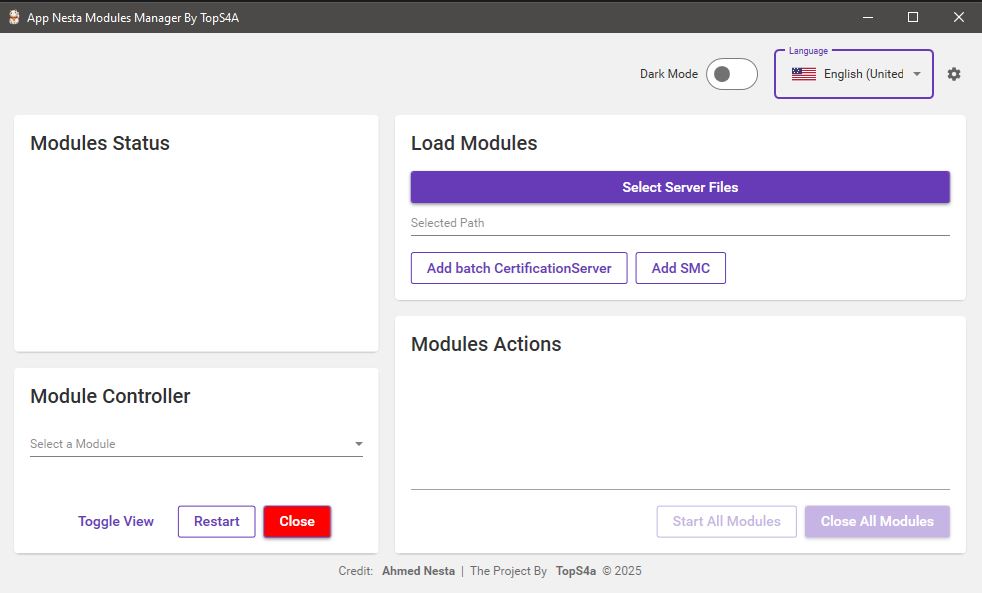
- An empty list in the center where your added programs will appear.
- A big "Add Module" button to start adding your apps.
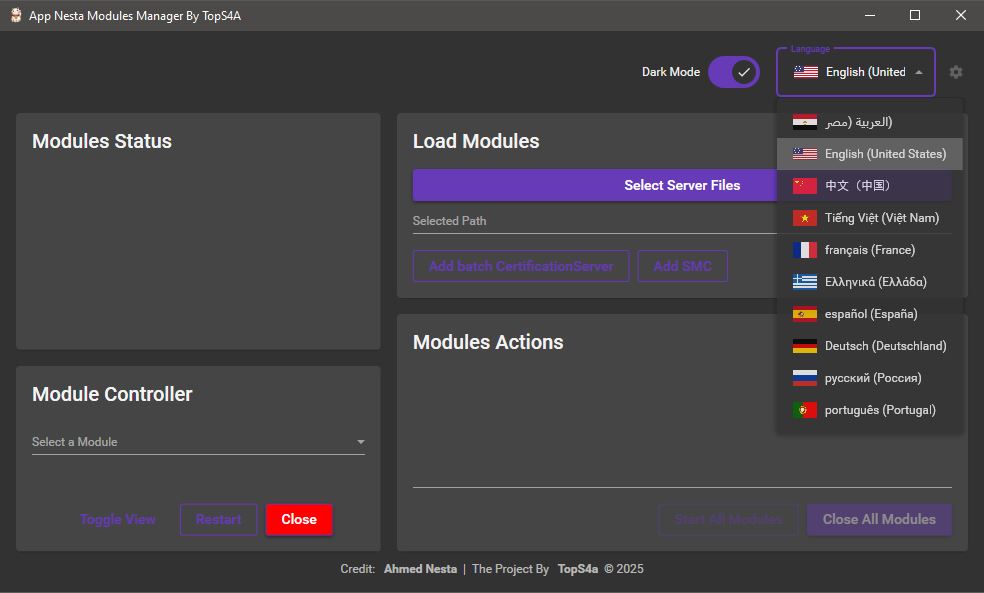
- Two icons at the top: one to change the language, and one to switch between light and dark mode.
- 2. How to add your programs:
- Click the "Add Module" button.
- Enter a name for the program.
- Choose the executable file (.exe) from your device.
- Click "Save".
- The program will now appear in the list. You can repeat this for all the programs you want.
- 3. Start and stop programs:
- Each program has a toggle switch beside it.
- Click to start the program (status becomes "Running").
- Click again to stop it (status becomes "Stopped").
- 4. Extra tools for each program:
- Next to each program, you will find:
- Edit: to change the name or update the path.
- Delete: to remove the program from the list (confirmation required).
- Hide/Show: to hide the program window while it keeps running in the background.
- 5. Performance monitoring:
- While a program is running, you will see:
- CPU: shows how much processor usage it takes.
- Memory: shows how much RAM it uses.
- This helps you track how demanding each app is.

- 6. Interface customization:
- Language: switch between 10 available languages.
- Theme: switch between light and dark mode.
- The program saves everything automatically – your app list, preferred language, and theme – and restores them the next time you open it.
- 7. Window Control
- You can resize the program window freely — make it larger or smaller as you prefer.
- You can also drag the window around the screen easily by holding the top area, just like any regular app.
- The window behaves smoothly without any errors, freezing, or glitches.
- It’s designed to work perfectly on all screen sizes and resolutions.

- Step 1 - Adding and Saving a Module

This screenshot shows how to add a new module (program) to the app.
Once you:
- Enter a name for the module
- Select the .exe file of your program
- Click the Save button
→ The program is saved instantly and added to your main list.
No need to restart or refresh — everything is saved automatically.
Your list stays intact even after closing and reopening the application.
This makes it easy to build your list once and always have it ready. - Step 2 - Controlling Your Program

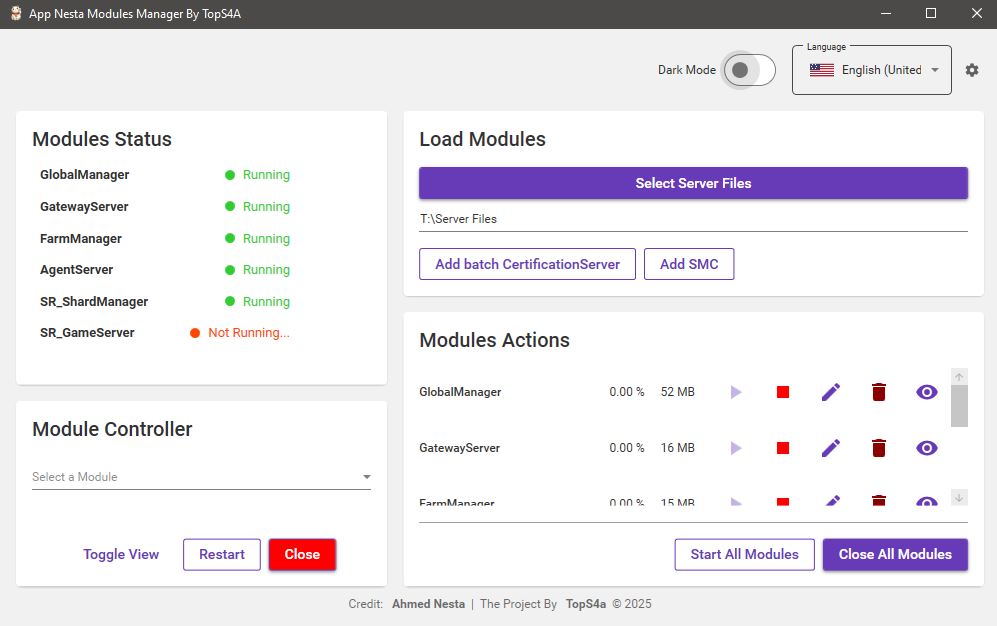
This screenshot shows how the app displays each program after being added.
You can:
- Turn it ON/OFF using the toggle switch (green for running, red for stopped)
- Edit the program name or path
- Delete it from your list (confirmation required)
- Hide/Show the program window without closing it
This is your control panel for all your favorite apps — simple, clean, and beginner-friendly. - Download Now

- Scan with VirusTotal

— With sincere regards,
— Save Credit Ahmed Nesta